
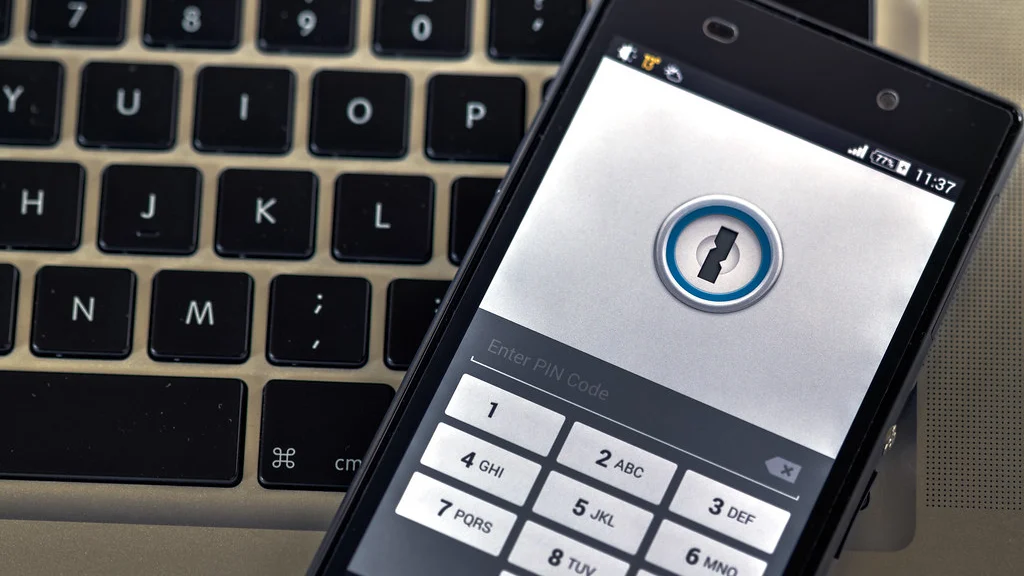
A password manager is most valuable when it becomes boring. It should generate a unique credential, fill it on the correct site, synchronize safely, and help you recover without encouraging insecure shortcuts. The security architecture matters, but so do the small moments that determine whether a family or team will use it every day.
Our practical picks: Bitwarden is the best all-round starting point for value, cross-platform access, transparency, and flexible deployment. 1Password is the most polished choice for families and teams. Proton Pass is particularly appealing for people who want email aliases alongside credentials, and KeePassXC is the local-first option for users willing to manage their own encrypted database and synchronization.
We compared current feature and security documentation, not secret access to anyone’s vault. Plan details can change. Find more security advice or visit NexalooTech.
In this article
- The decision in four questions
- Best overall: Bitwarden
- Best polished experience: 1Password
- Best for email aliases: Proton Pass
- Best local-first option: KeePassXC
- What about Apple, Google, and Microsoft password storage?
- Passkeys change login, not the need for a vault
- Security features that matter more than a long checklist
- A safe migration plan
- 1. Secure the manager account first
- 2. Import, then clean the export
- 3. Change passwords in risk order
- 4. Add family recovery
- Common mistakes
- Our recommendation
- More Related Articles
The decision in four questions
- Will it work everywhere? List every desktop, phone, browser, and shared device you actually use.
- Can you recover safely? Understand account recovery, emergency access, recovery codes, and what the provider cannot restore.
- Can you leave? Check import and export formats before building a large vault.
- Will other people use it? Sharing and administration must be understandable to the least technical member.
Best overall: Bitwarden
Bitwarden combines broad platform support, unlimited core vault storage on its free individual plan, password generation, autofill, sharing options, encrypted exports, and an open ecosystem. Current documentation describes logins, passkeys, secure notes, cards, identities, biometric unlock, data breach reports, email-alias integrations, encrypted attachments on eligible plans, and self-hosting for organizations with appropriate requirements.
Its strongest advantage is flexibility. An individual can begin free, a family can share through an organization, and a business can add policies, event logs, directory tooling, or self-hosting where supported. The interface exposes more concepts than the simplest browser manager, so new users should learn the difference between an individual vault, an organization, collections, and shared items before moving family credentials.
Best polished experience: 1Password
1Password is a strong fit for people who prioritize refined apps, understandable family sharing, travel-aware controls, item organization, and a mature team experience. Its account security model uses an account password together with an additional Secret Key, which improves resistance to certain server-side attacks but also makes the Emergency Kit and recovery process important.
It is not usually the cheapest path, and the user should verify current plan limits and recovery behavior. The reason to choose it is reduced friction: if a polished prompt, clear sharing flow, and consistent application encourage every household member to stop reusing passwords, usability becomes a security feature.
Best for email aliases: Proton Pass
Proton Pass combines a password vault with hide-my-email aliases. An alias can forward messages without revealing the primary address, reducing exposure when a retailer or newsletter leaks account data. Proton currently documents unlimited logins and devices on its free plan, a password generator, alerts for weak or reused passwords, passkey support, and a limited number of aliases; paid tiers expand aliases, sharing, monitoring, attachments, and emergency access.
Proton says vault content is protected with end-to-end encryption and describes encryption of metadata as well as password fields. It also publishes security material and audit information. The best audience is someone already interested in Proton’s privacy services or anyone who wants alias generation integrated into sign-up and autofill.
Best local-first option: KeePassXC
KeePassXC stores credentials in an encrypted database you control. There is no required vendor cloud account, and the application is open source. That design reduces dependence on a hosted service, but it transfers responsibility to the user: you must back up the database, synchronize it safely if multiple devices need access, protect the key material, and plan recovery.
Choose it when local custody is a deliberate requirement and you are comfortable operating the system. It is not automatically safer for a person who will keep one untested copy of the vault on a failing laptop. Operational discipline matters as much as encryption.
What about Apple, Google, and Microsoft password storage?
Platform password tools have improved and may be sufficient for someone who lives inside one ecosystem. They can generate and fill credentials, synchronize across signed-in devices, and increasingly support passkeys. The limitations appear when a household mixes platforms, when structured sharing is required, or when you need independent organization and export behavior.
The best upgrade is the one you will complete. Moving from reused passwords to unique generated credentials in a reliable platform manager is already meaningful progress. A dedicated manager becomes more compelling as devices, browsers, family members, shared accounts, and recovery needs multiply.
Passkeys change login, not the need for a vault
A passkey uses a cryptographic key pair instead of a reusable secret sent to a website. It is designed to resist phishing because the credential is tied to the legitimate service. Password managers can store and synchronize passkeys across supported devices, making them useful beyond a single platform ecosystem.
Adoption is still uneven. Some services support passkeys only on selected devices or retain a password fallback. Before moving an important account, check how the passkey is backed up, whether it can be exported, what happens after a lost device, and whether another trusted device can approve recovery. Keep recovery codes for critical accounts in a protected location separate from the everyday device.
Security features that matter more than a long checklist
| Feature | Why it matters | What to test |
|---|---|---|
| Autofill matching | Can resist filling a credential on the wrong domain | Subdomains, look-alike pages, and mobile apps |
| Two-step login | Protects the vault account beyond its main password | Authenticator or hardware key plus recovery codes |
| Emergency access | Helps a trusted person during incapacity or death | Waiting period, view versus takeover, revocation |
| Export | Prevents permanent lock-in and enables protected backup | Encrypted versus plaintext format and cleanup |
| Security reports | Finds reused, weak, or exposed credentials | False positives and a safe remediation order |
A safe migration plan
1. Secure the manager account first
Create a long, unique account password. Turn on the strongest practical multi-factor method, save recovery material, and sign in on a second trusted device before importing anything. Do not store the only recovery code inside the vault it is meant to recover.
2. Import, then clean the export
Browser and competitor exports are often unencrypted CSV files. Import on a trusted device, verify the item count and several important logins, then securely remove temporary exports and empty trash where appropriate. Keep an encrypted backup using a documented method.
3. Change passwords in risk order
Start with email, financial, cloud storage, domain registrar, social, and shopping accounts. Replace reused credentials gradually with generated ones. Turning the entire vault into a weekend project often leads to lockouts and abandoned cleanup.
4. Add family recovery
Document who can access shared bills, utilities, photos, subscriptions, and important records. Bitwarden’s emergency access, for example, uses a trusted contact, a defined waiting period, and view or takeover permissions on eligible plans. Whatever tool you choose, test the process before an emergency.
Common mistakes
- Using a memorable but reused master password.
- Keeping the only recovery code as a screenshot on the same phone.
- Sharing a password in chat instead of using a controlled shared item.
- Leaving plaintext export files in Downloads or cloud sync.
- Approving every autofill prompt without checking the domain.
- Assuming a VPN replaces account security; our VPN guide explains the separate role of an encrypted network tunnel.
Our recommendation
Bitwarden is the easiest general recommendation because it offers a capable free foundation, broad compatibility, transparent documentation, and room to grow. Choose 1Password when polished family or team usability justifies the subscription, Proton Pass when integrated email aliases solve a real privacy problem, and KeePassXC when local custody is an explicit operational choice.
After setup, keep devices patched and use active malware protection. A password manager can prevent reuse and phishing mistakes, but it cannot make a compromised operating system trustworthy.