
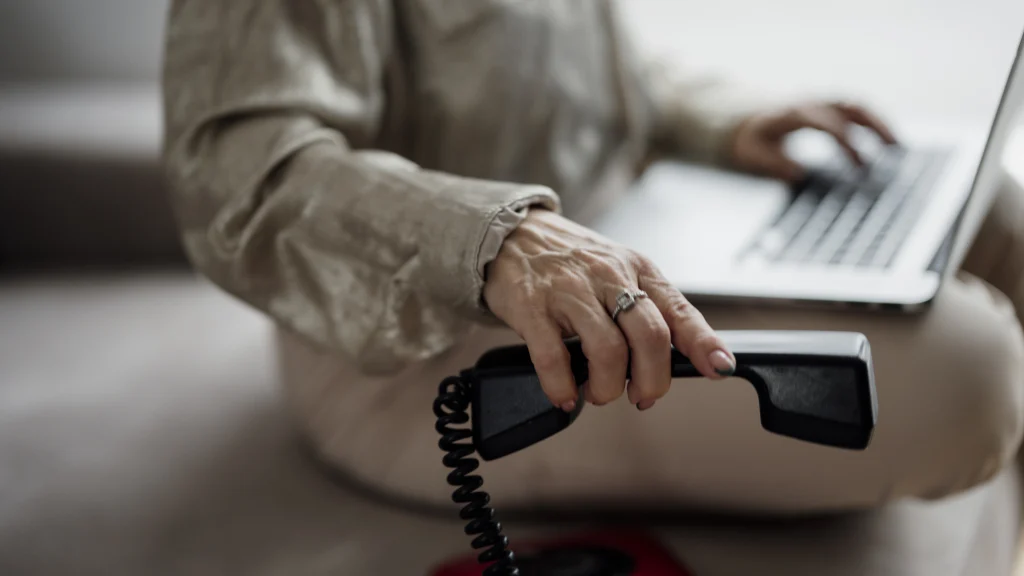
You can send a fax without a fax machine or analog phone line. An online fax service accepts a document through a web portal, authorized email address, or mobile workflow, converts it into a fax transmission, and provides a status record. To receive faxes, you normally need a paid plan with an assigned or ported fax number.
The mechanics are simple; avoiding a wrong recipient, unreadable scan, exposed attachment, or false assumption about delivery takes more care. This guide provides a provider-neutral process and notes where Dropbox Fax, eFax, Fax.Plus, and RingCentral differ. Explore more workplace tools in our Business category, or return to NexalooTech Home.
In this article
- What you need before sending
- Method 1: Send a fax from a web portal
- Method 2: Send a fax from email
- Method 3: Fax from a phone
- How to receive a fax online
- A delivery confirmation is not proof of review
- Protect sensitive documents
- Prepare a document that survives fax conversion
- Troubleshoot a failed online fax
- How this guide was verified
- Frequently asked questions
- Can I fax online for free?
- Can I fax from Gmail or Outlook?
- Does the recipient need an online fax account?
- Is online fax legally binding?
- Bottom line
- More Related Articles
What you need before sending
- An account with an online fax provider that supports the destination country.
- The recipient’s full fax number, including country and area code where required.
- A clean PDF or another file type explicitly supported by the provider.
- The recipient’s name or department and a separate way to confirm the number.
- A secure device, current browser or app, and reliable internet connection.
- Permission to transmit the document and a retention policy for the resulting copy.
For a one-time, non-sensitive fax, a pay-as-you-go or limited free-send option may be enough. Receiving usually requires a subscription because the service must reserve a number. A business should compare user access, audit logs, number porting, administrator controls, retention, supported regions, and contractual compliance commitments before choosing on price.
Method 1: Send a fax from a web portal
- Sign in through the provider’s official site. Confirm the domain and use multifactor authentication if available.
- Choose Send Fax or Compose. Do not use a link from an unexpected email to reach the portal.
- Upload the document. PDF is the safest general choice because it preserves layout. Some services also accept DOCX, images, spreadsheets, or cloud-storage imports.
- Arrange the files. Multiple attachments are commonly combined in upload order. Preview the final sequence.
- Enter the recipient number. Use the international format required by the service. Compare every digit with an independently verified source.
- Add a cover page if appropriate. Include the recipient, sender, page count, purpose, and a callback method, but avoid unnecessary confidential detail.
- Review and send. Check orientation, blank pages, cropped signatures, small type, and the final number before committing.
- Save the result. Wait for a success or failure status and record the transaction ID or confirmation.
Dropbox Fax, for example, lets a user upload from a computer or supported cloud service, add fields such as text, date, checkboxes, or a signature, enter the destination, and then check status on the Faxes page. The provider also sends a confirmation email. Interfaces change, but the sequence remains broadly similar.
Method 2: Send a fax from email
Email-to-fax turns the destination number into a special email address. It works only when your provider enables the feature and recognizes the sender. Do not copy a suffix from another service: each company uses its own gateway and number format.
- Register or authorize the email address inside the fax account.
- Open a new message from that exact address.
- Enter the country code and fax number followed by the provider’s gateway domain.
- Attach the document in a supported format.
- Enter cover-page text only if the provider treats the message body that way.
- Send the email, then wait for the fax service’s delivery report.
Current examples illustrate the provider-specific syntax. Fax.Plus documents +16692001010@fax.plus. eFax instructs users to append its own sending domain to the destination number. Dropbox Fax uses a HelloFax gateway for email sending and requires a paid subscription for its phone email workflow. These are examples, not interchangeable addresses; copy the exact current format from your account’s official help page.
Ordinary email sent to the gateway may expose an attachment in the sender’s Sent folder, mailbox, notification preview, backup, or forwarded thread. If the document is sensitive, determine whether email-to-fax is approved by your organization or whether the authenticated portal is required.
Method 3: Fax from a phone
A provider app may let you photograph a paper document, crop and reorder pages, enter the number, and send. Some services instead use a mobile browser or email. Dropbox Fax currently states that it does not require a dedicated mobile app for faxing from a phone; its paid subscribers can attach a document or phone photo to an email addressed to its gateway.
For a readable phone scan:
- Place each page flat on a contrasting, evenly lit surface.
- Hold the camera parallel to the page to avoid a trapezoid shape.
- Keep fingers, shadows, glare, and private background objects out of frame.
- Crop to page edges and verify small print at full size.
- Combine pages in the correct order and export a single PDF when possible.
- Remove temporary camera images after the approved copy is stored.
A phone photograph can be good enough for a simple signed form, but a flatbed or document scanner is safer for faint text, identification, double-sided pages, fine tables, and many-page packets.
How to receive a fax online
- Choose an inbound-capable plan. Free sending does not imply free receiving; Dropbox Fax explicitly requires a paid plan for incoming faxes.
- Select or port a number. Confirm local, toll-free, and international availability plus porting time and fees.
- Configure recipients. Decide which users or group mailbox can view notifications and documents.
- Give the number to the sender. Ask for a small test fax before a time-sensitive transmission.
- Open the fax in the authenticated portal. Email notification is useful, but a secure portal avoids leaving an unprotected attachment in multiple mailboxes.
- Validate the document. Check sender, timestamp, page count, legibility, completeness, and unexpected blank pages.
- File or delete it according to policy. Do not let regulated records accumulate indefinitely in an inbox.
Porting an existing number avoids forcing clients to update records, but never cancel the old service until the new provider confirms that the port is complete and inbound tests succeed.
A delivery confirmation is not proof of review
A successful status usually means the destination fax endpoint accepted the transmission. It does not prove that the intended human read every page, that a shared machine kept the pages private, or that the document entered the correct case file. For urgent or sensitive work, contact the recipient through a known channel and confirm the destination number and page count without disclosing private content to an unverified person.
Keep the confirmation, timestamp, recipient number, page count, and transaction identifier for the period your policy requires. Avoid storing a sensitive document twice merely because both the portal and email contain copies.
Protect sensitive documents
Online fax is not automatically secure, confidential, HIPAA-compliant, or legally sufficient. Those outcomes depend on the service, configuration, contracts, organization, people, destination, and applicable law. A vendor’s compliance marketing does not by itself make your workflow compliant. Regulated organizations may need a business associate agreement or another formal contract, access controls, audit records, encryption, approved retention, and documented procedures.
- Verify the number through a trusted directory or direct call.
- Use a named account instead of shared credentials.
- Enable multifactor authentication and strong unique passwords.
- Limit portal access by role and remove former users promptly.
- Send the minimum necessary pages and redact irrelevant sensitive data.
- Avoid public Wi-Fi for confidential work unless organizational controls explicitly permit it.
- Review notification settings so protected data is not displayed on lock screens.
- Apply retention and secure deletion rules to the portal, mailbox, device, downloads, and backups.
Our password manager guide covers account credential hygiene. A VPN can protect traffic between your device and a trusted VPN endpoint on an untrusted network, but it does not correct a wrong fax number or change the provider’s storage practices.
Prepare a document that survives fax conversion
Fax workflows commonly convert files to a monochrome or grayscale page image. Use high contrast, dark text, a plain background, readable type, and generous margins. Avoid faint pencil, colored annotations that disappear in grayscale, tiny footnotes, translucent signatures, and shaded tables with poor contrast.
Export directly to PDF when the source is digital. If the file came from collaborative or cloud storage, download a fixed final version rather than faxing a live link. Our cloud storage comparison explains access and version-control considerations before transmission.
Troubleshoot a failed online fax
| Symptom | Likely checks |
|---|---|
| Invalid number | Country code, area code, omitted trunk prefix, unsupported destination, or copied punctuation |
| No answer or busy | Wrong endpoint, offline machine, voice line, congestion, or repeated retry schedule |
| Attachment rejected | Unsupported type, password protection, file size, page limit, corruption, or account quota |
| Partial transmission | Poor receiving line, oversized job, complex page rendering, timeout, or interrupted conversion |
| Email method fails | Unregistered sender, wrong gateway domain, disabled feature, insufficient credit, or spam filtering |
| Unreadable result | Low-resolution scan, poor contrast, wrong orientation, small text, color loss, or aggressive compression |
Do not resend repeatedly without checking status; multiple attempts can produce duplicate confidential copies. Split a long document only after agreeing on naming and page sequence with the recipient. Escalate persistent problems through the provider’s support channel and preserve the transaction ID. Businesses managing user incidents may also benefit from the workflow ideas in our help desk software guide.
How this guide was verified
We reviewed current official instructions from Dropbox Fax, eFax, Fax.Plus, and RingCentral for web, email, and mobile sending, incoming fax access, supported workflows, and delivery status. We did not assume that one provider’s gateway, file limit, security claim, price, or retention rule applies to another. Instructions were checked on October 16, 2026 and may change.
Frequently asked questions
Can I fax online for free?
Some providers allow a limited number of free outgoing pages, but restrictions and branding vary. Receiving generally requires a paid number. Read the final price, page allowance, destination coverage, and renewal terms before uploading private data.
Can I fax from Gmail or Outlook?
Yes, when your fax provider supports email-to-fax and authorizes that sender. Address the message using the provider’s exact number format and gateway domain, attach the file, and wait for the fax delivery report.
Does the recipient need an online fax account?
No. An online service can transmit to a conventional fax number. The recipient can use a machine, multifunction printer, another online provider, or a business fax system.
Is online fax legally binding?
A transmission method alone does not determine legal validity. Signatures, consent, recordkeeping, identity, jurisdiction, and document type matter. Ask qualified counsel or the receiving institution about a specific requirement.
Bottom line
For most users, the safest path is an authenticated provider portal: upload a clean PDF, verify the destination independently, preview every page, send, and retain the status record. Email and phone workflows are convenient when configured correctly, but they create extra places where sensitive files can remain.
Receiving requires a dedicated number and a controlled inbox or portal. Treat the fax as a record, not just a message: restrict access, confirm delivery, and follow the retention rules that apply to the document.