
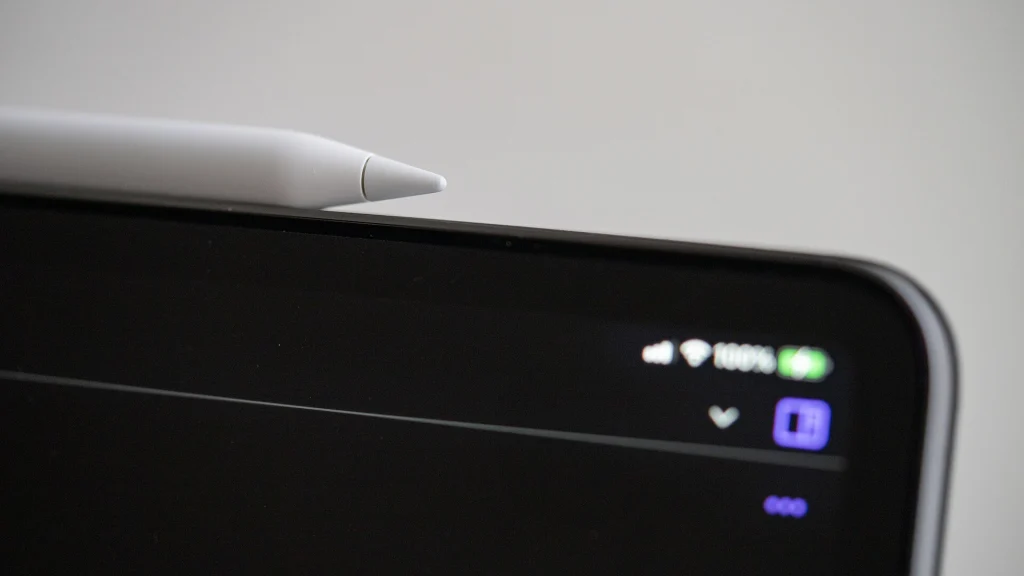
Apple Pencil Pro is the most capable stylus Apple makes. It keeps the pressure and tilt response expected by illustrators, then adds squeeze input, barrel rotation, haptic confirmation, hover, double tap, magnetic pairing and charging, and Find My support. Those additions can remove small interruptions from a drawing or note-taking workflow.
The catch is compatibility. Apple Pencil Pro does not work with many iPads that support Apple Pencil (2nd generation) or Apple Pencil (USB-C). This review is based on current Apple specifications and support documentation, not a claimed laboratory test of latency, pressure curves, battery endurance, or durability. Browse more accessories in our Mobile category, or return to NexalooTech Home.
In this article
- Apple Pencil Pro at a glance
- Verdict before the details
- Design and handling
- Squeeze is the most immediate upgrade
- Barrel roll makes shaped tools more natural
- Haptic feedback closes the loop
- Double tap and hover remain useful
- Find My solves a practical problem
- Compatibility: check the exact iPad name
- Apple Pencil Pro versus Apple Pencil (USB-C)
- App support determines real value
- Setup and daily workflow
- Who should buy Apple Pencil Pro?
- Final assessment
- More Related Articles
Apple Pencil Pro at a glance
- Best for: illustrators, designers, animators, editors, and frequent handwritten-note users with a compatible iPad.
- Key controls: squeeze, barrel roll, double tap, hover, pressure, and tilt.
- Feedback: a haptic engine confirms actions such as squeeze and double tap.
- Connection: Bluetooth, with magnetic attachment, pairing, storage, and charging.
- Dimensions: 166 mm long, 8.9 mm in diameter, and 19.15 grams according to Apple.
- Biggest limitation: it supports only selected newer iPad Pro, iPad Air, and iPad mini models.
Verdict before the details
Apple Pencil Pro is the logical stylus for a compatible iPad when creative apps are central to the purchase. Squeeze and barrel roll are not decorative upgrades: they can keep a hand on the canvas while exposing tools or rotating a shaped brush. Haptics makes invisible gestures easier to trust, and Find My addresses a common frustration with a small white accessory.
It is unnecessary for basic tapping, signatures, highlighting, or occasional notes. Apple Pencil (USB-C) covers precision and tilt on a wider range of current and older iPads, although it lacks pressure sensitivity, wireless charging, double tap, squeeze, barrel roll, haptics, and Find My. Compatibility and app support should decide the purchase—not the word “Pro.”
Design and handling
The Pencil Pro retains the familiar white cylindrical form with a flat magnetic side. Apple lists the same general length and diameter that make it feel closer to a writing instrument than a short tablet stylus. Its 19.15-gram weight is light enough for mobile use, though hand size, grip position, and long sessions matter more than a specification alone.
The flat edge helps prevent rolling and aligns the Pencil with a compatible iPad’s magnetic connector. Attaching it to the long side pairs and charges it, avoiding a loose cable or exposed charging plug. A case must leave that connector accessible and hold the Pencil securely; some folio designs weaken attachment or make squeeze gestures awkward.
Squeeze is the most immediate upgrade
A sensor in the barrel detects a squeeze. In supported software, the gesture can open a tool palette or perform another configured action, such as undo. This is valuable because a user can change tools, line weight, or color without reaching across the screen or breaking their grip.
Apple lets users choose the squeeze action in Apple Pencil settings, but behavior still depends on application support. Someone who spends the day in one illustration app should confirm that app’s implementation rather than assuming every Apple demo applies. Grip style also matters: a person who naturally clenches the barrel may need to adjust sensitivity or disable the gesture.
Barrel roll makes shaped tools more natural
A gyroscope detects rotation of the Pencil. Supported pens, highlighters, and brushes can change orientation as the barrel rolls, closer to turning a physical chisel marker or flat brush. Apple’s own guidance names tools in Notes, Freeform, and Markup, with third-party behavior left to developers.
The benefit grows with asymmetric tips. A round pencil brush will show little difference, while a calligraphy nib, broad highlighter, or textured paint tool can respond dramatically. Hover can preview orientation before the tip touches the display, reducing trial marks. This combination is the Pencil Pro’s clearest advantage for visual artists.
Haptic feedback closes the loop
The stylus produces a light pulse when it recognizes interactions such as squeeze and double tap. That confirmation matters because neither gesture requires a physical button with obvious travel. Haptics can tell the user an action registered while their attention remains on the artwork.
Feedback can be turned off in Apple Pencil settings. People sensitive to vibration or anyone who dislikes the sensation has a choice. Haptics does not simulate paper texture across every stroke; it confirms specific actions. A matte screen protector changes surface friction, but it can also affect clarity and tip wear and should be evaluated separately.
Double tap and hover remain useful
Double tap can switch to a previous tool or another assigned action in supported apps. It is faster than opening a palette for a frequent pen-and-eraser rhythm. The new squeeze control does not replace it; one gesture can handle a quick toggle while the other exposes a larger menu.
Hover shows where the Pencil will touch and can preview the angle of compatible tools. This helps with precise placement, user-interface discovery, and brush orientation. Hover depends on supported iPad hardware and software, so it should not be used as evidence that a particular older iPad accepts Pencil Pro.
Find My solves a practical problem
Apple Pencil Pro can appear in the Find My app, an important difference from earlier Apple styluses. A Pencil can detach inside a bag, hide between cushions, or remain in another room, and the app provides a more useful starting point than retracing every step.
Find My support should not be confused with a fully independent cellular or GPS tracker. Keep the Pencil paired, use the same Apple Account appropriately, and test the feature before relying on it. A case with a secure Pencil flap remains the best prevention when traveling.
Compatibility: check the exact iPad name
Apple’s current compatibility list requires iPadOS 17.5 or later and includes:
- iPad Pro 13-inch with M4 or M5.
- iPad Pro 11-inch with M4 or M5.
- iPad Air 13-inch with M2, M3, or M4.
- iPad Air 11-inch with M2, M3, or M4.
- iPad mini with A17 Pro.
That list excludes many still-powerful iPads, including older 11-inch and 12.9-inch iPad Pro generations that use Apple Pencil (2nd generation). Physical magnetic attachment does not prove pairing compatibility. On the iPad, open Settings, choose General and About, and compare the displayed model name with Apple’s live support list before buying.
Apple Pencil Pro versus Apple Pencil (USB-C)
Both models offer precision, low latency, tilt sensitivity, magnetic attachment, and hover on supported iPads. The USB-C model pairs and charges through a cable rather than charging wirelessly on the tablet. It does not provide pressure sensitivity, double tap, barrel roll, squeeze, haptic feedback, or Find My.
For handwritten notes, document annotation, simple diagrams, and navigation, the USB-C Pencil may be enough. For pressure-sensitive drawing, the comparison ends quickly: Pencil Pro is the appropriate current option on a compatible iPad. Also compare the actual regional price and education offers on the day of purchase rather than relying on an old list price.
App support determines real value
Apple exposes the hardware capabilities, but developers decide how tools react. Before buying, list the three apps that will justify the stylus. Check whether they support pressure, hover, double tap, squeeze, barrel roll, and custom gesture mapping. Read current release notes and documentation rather than assuming support from a promotional screenshot.
For photo retouching, selection masks, and illustration, a stylus is only one part of the workflow. Our photo editing software guide compares broader application choices. Teams creating quick social graphics can also read our Canva review, while recognizing that not every design task benefits equally from pressure-sensitive input.
Setup and daily workflow
- Update a compatible iPad to the current supported iPadOS release.
- Remove any case section that blocks the magnetic connector.
- Attach Pencil Pro to the long side and follow the pairing prompt.
- Open Settings and choose actions for squeeze and double tap.
- Enable or disable haptics based on comfort.
- Open Find My and confirm the Pencil appears before leaving home.
- Test every core app with pressure, hover, and barrel roll.
Keep a spare tip if the Pencil is essential to paid work, and inspect the tip when lines become inconsistent. Do not overtighten a replacement. Clean the Pencil and display according to Apple’s care guidance, and avoid leaving the accessory loose where the tip can be struck.
Who should buy Apple Pencil Pro?
Buy it if you already own a compatible iPad and regularly draw, paint, retouch, animate, handwrite, or mark up complex documents. It also makes sense when Find My and cable-free charging prevent recurring workflow friction.
Skip it if the iPad is incompatible, if the stylus is mainly for navigation and signatures, or if the required app ignores the advanced controls. Do not replace an older iPad solely to gain squeeze or barrel roll unless the tablet upgrade itself is justified.
Final assessment
Apple Pencil Pro is a thoughtful refinement rather than a reinvention. Squeeze, barrel roll, hover, double tap, and haptics work together to keep attention on the canvas, while magnetic charging and Find My improve ownership outside the drawing session. The feature set is coherent and particularly strong for shaped brushes and frequent tool changes.
Its narrow compatibility is the decisive drawback. Confirm the exact iPad and the exact apps first. When both support the full feature set, Pencil Pro is the best Apple stylus choice; when they do not, a less expensive Pencil or the stylus already owned is the smarter purchase.